Full-site scan
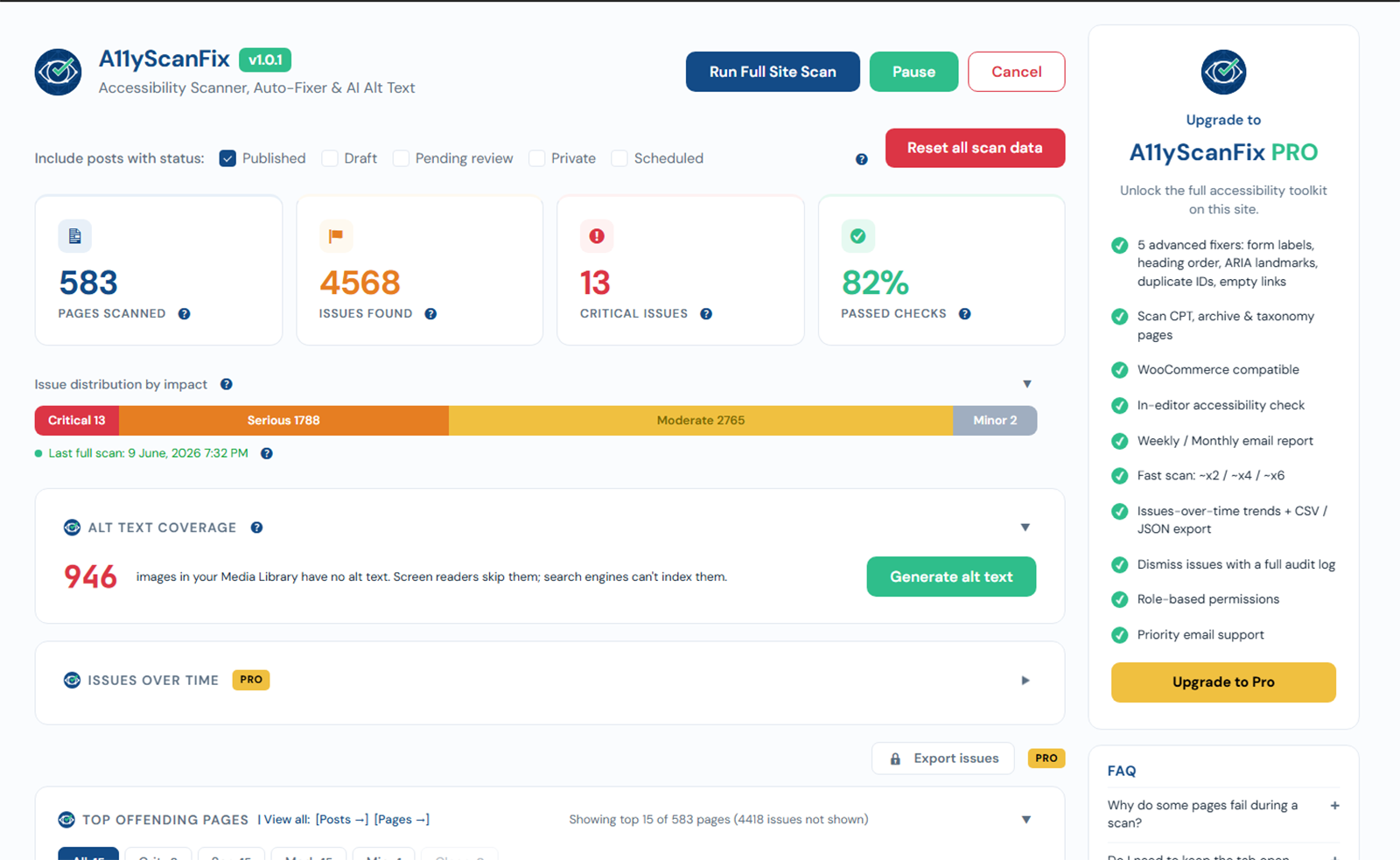
The full-site scan walks every selected post and page, runs axe-core on each, and saves the results to your database. Free scans posts and pages; Pro widens this to custom post types, archives, and taxonomies.
Running a scan
- Go to A11yScanFix -> Dashboard.
- Tick the post statuses to include (Published, Draft, Pending, Private, Scheduled).
- Click Run Full Site Scan.
- Keep the tab open. The cards, progress bar, and log update live.
Pause and resume
Click Pause to stop a long scan and save its progress. The dashboard shows a resume banner; click Resume scan to continue where you left off, even after a page reload.
Cancel (partial results)
Click Cancel to stop a scan you no longer need. The pages already scanned are kept and the dashboard shows them clearly marked as a partial / cancelled scan (date and page count), so partial numbers are never mistaken for a full audit. A later full scan replaces them.
Retry failed pages
If a few pages time out or fail to save, a Retry N failed button appears. It re-scans only those pages and merges the results back into the same dataset - it never shrinks the dashboard to just the retried pages.
Scan log
Every scan produces a per-page log (scanned / with issues / failed / clean), which you can download as a .txt file. See Scan log.
Scan speed PRO
PRO feature
Free scans one page at a time. Pro adds a Scan speed setting - Default / Fast / Faster / Experimental - to scan several pages at once on large sites.